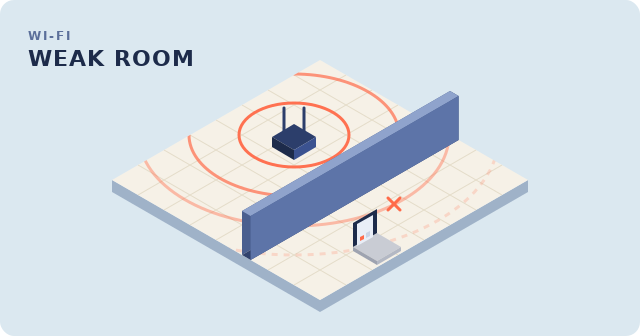
The router sits in the living room. On the sofa a video starts before you put the remote down. You carry the laptop to the back bedroom and the same video stops every minute. Same router, same Wi-Fi name, same evening.
Nothing is broken. In that room the signal arrives weak, so the router and the laptop fall back to slower, sturdier settings to keep talking. This post explains where the signal goes, how to read the number that measures it, and which fixes work. (Your phone also uses the routers it can hear to work out where it is: how your phone knows where you are.)
Short version:
- Every wall takes a fixed number of decibels off the signal. Thick concrete takes the most, and 5 and 6 GHz lose more in it than 2.4 GHz does.
- Read the signal in dBm, not in bars. Around -67 dBm is comfortable for calls and video. Around -80 dBm is barely connected.
- Move the router first, then check the channel. A wired second access point beats an extender.
The signal fades in two ways
A Wi-Fi signal is a radio wave. It loses strength as it spreads out, and it loses more when it has to pass through something. The first loss depends on distance. The second depends on what is in the way.
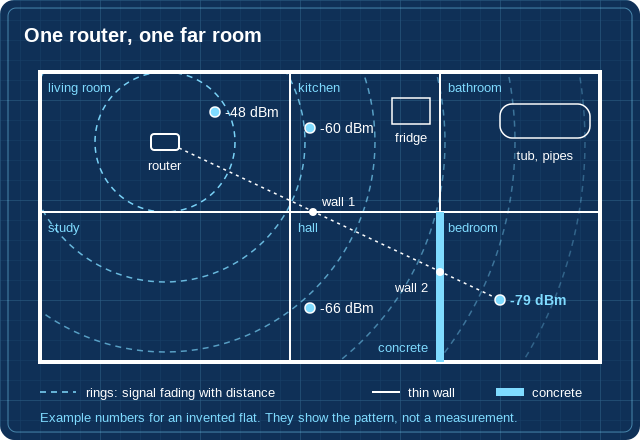
The far bedroom is further away than the hall, and it is behind two walls. One of them is concrete. That is the usual shape of a dead room: a bit of distance plus one wall that takes a lot.
The numbers in the picture are made up to show the pattern. The next section explains what they mean.
Decibels and dBm in two minutes
A decibel (dB) compares two powers on a log scale. You do not need the formula. You need this table:
| Change | Power that is left |
|---|---|
| -3 dB | half |
| -10 dB | one tenth |
| -20 dB | one hundredth |
| -30 dB | one thousandth |
Losses add up. A wall that takes 10 dB and a wall that takes 3 dB take 13 dB together, which leaves about one twentieth of the power.
dBm is the same scale with a fixed starting point: 0 dBm is one milliwatt. Wi-Fi arrives at tiny levels. -67 dBm is about two ten-millionths of a milliwatt. That is why the numbers are negative, and why closer to zero is stronger.
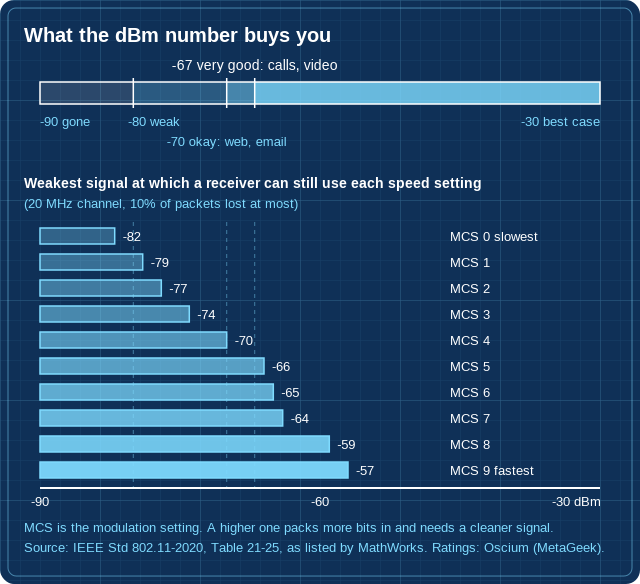
The ruler on top uses the rating levels from Oscium’s training notes (the page used to live on MetaGeek). They call -67 dBm “very good” and the minimum for voice and streaming video, -70 dBm “okay” for web and email, -80 dBm “not good” with unreliable packet delivery, and -90 dBm unusable. The page says these are suggestions, because what you need depends on the network. I treat them as a rule of thumb, not a standard.
The bars below the ruler come from the standard itself. Wi-Fi has a ladder of speed settings called MCS (modulation and coding scheme). A higher MCS packs more bits into each symbol, so it needs a cleaner signal. The standard sets the weakest signal at which a receiver must still work, with at most 10% of packets lost. For a 20 MHz channel it runs from -82 dBm for MCS 0 to -57 dBm for MCS 9. These are minimums for a receiver. Real devices need more margin because of noise and other traffic.
Read the example bedroom again. At -79 dBm only the first two settings are even possible. The sofa at -48 dBm has no such limit.
To see your own number on a laptop, hold Option and click the Wi-Fi icon on a
Mac. It shows details such as the channel and band, and third-party guides say
it shows the received signal level (RSSI) too. On Linux, iw dev <interface> link
prints signal: -xx dBm (the interface name varies, for example wlan0 or
wlp3s0). Phones and Windows usually show bars, so a Wi-Fi
scanner app is the easy way there.
Why 5 and 6 GHz lose more
The three bands differ in frequency, and frequency changes two things.
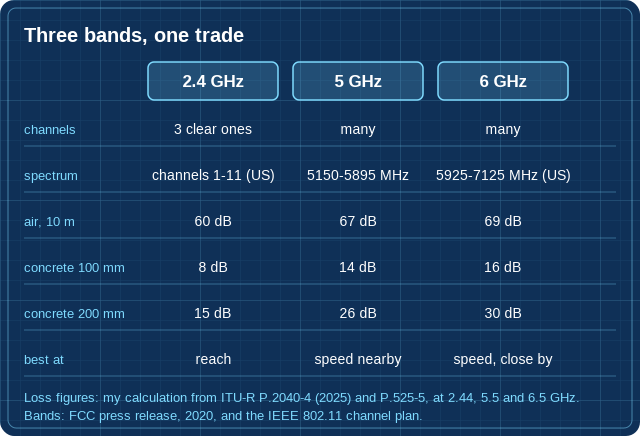
Open air. The free-space loss formula (see ITU-R P.525) grows by 20 dB for every tenfold increase in frequency. In plain terms, a higher frequency means a shorter wave, and a receiving antenna of the same design catches less of it. I worked it out for 10 metres: 60.2 dB at 2.44 GHz, 67.3 dB at 5.5 GHz and 68.7 dB at 6.5 GHz. So 5 GHz starts about 7 dB behind, which is five times less power, and 6 GHz about 8.5 dB behind. This happens before any wall.
Walls. Materials absorb and reflect more of a short wave. Microsoft’s support page says the same in plain words: 2.4 GHz is “better at going through obstacles”, while 5 and 6 GHz do not go through walls as well as 2.4 GHz, and for 6 GHz it says “doesn’t go through walls as well as other bands”. What it does not give is a number. The next section does.
The price of that range is speed. 2.4 GHz has the least room: three clear channels (more on that below) and the most traffic from neighbours, microwave ovens, cordless phones and Bluetooth. 5 GHz has more channels and less crowding. 6 GHz is a new, wide band. In the US the FCC opened 1,200 MHz of it for unlicensed use (5.925 to 7.125 GHz) in April 2020, and a Wi-Fi 6E router and a 6E device are needed to use it.
What a wall takes off
I wanted real numbers for each wall type at each band. ITU-R P.2040-4, the recommendation on how building materials affect radio, gives two numbers for each material (how much it slows the wave and how well it conducts), and both change with frequency. From those you can calculate how much a flat slab of a given thickness takes off a wave that hits it head on.
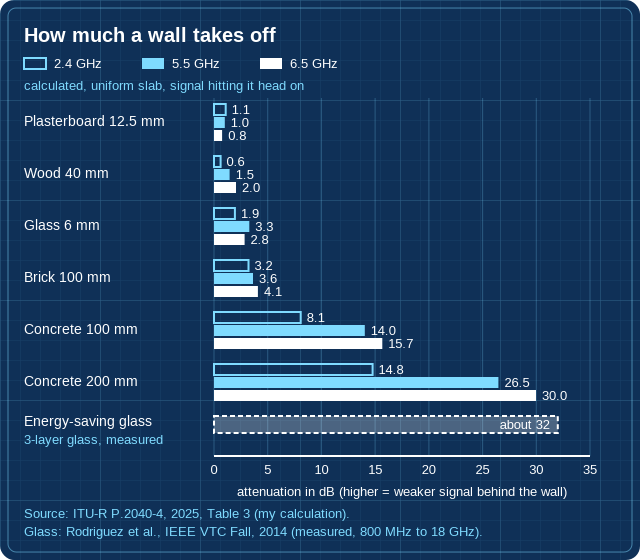
What the chart says:
- Most interior walls are cheap. One flat board of plasterboard or a wooden door costs a few dB at most. You can cross several and still have a signal.
- Concrete is the expensive one. 100 mm costs 8 dB at 2.4 GHz and 14 dB at 5.5 GHz. At 200 mm it costs 14.8 and 26.5 dB. That is about 15 times less power at 5.5 GHz than at 2.4 GHz after the same wall.
- Thickness adds. Twice the concrete is about twice the dB.
- Brick barely changes with frequency in this model. Do not expect that from a real brick wall with a cavity, mortar and damp in it.
The calculation is short. This is the core of it, with the numbers for concrete
(a is the permittivity, c and d give the conductivity, and f is in GHz):
import cmath, math

def slab_loss_db(a, c, d, thickness_m, f_ghz):
    sigma = c * f_ghz ** d                    # conductivity, S/m
    eps = complex(a, -17.98 * sigma / f_ghz)  # permittivity with loss
    n = cmath.sqrt(eps)
    k0 = 2 * math.pi * f_ghz * 1e9 / 299_792_458.0
    gamma = (1 - n) / (1 + n)                 # reflection, air to wall
    trip = cmath.exp(-1j * k0 * n * thickness_m)
    t = (1 - gamma**2) * trip / (1 - gamma**2 * trip**2)
    return -20 * math.log10(abs(t))

# Concrete in ITU-R P.2040-4, Table 3: a=5.24, c=0.0462, d=0.7822
for f in (2.44, 5.5, 6.5):
    print(f, round(slab_loss_db(5.24, 0.0462, 0.7822, 0.10, f), 1))
I ran the full script on Python 3.12 in a container. For 100 mm of concrete it printed 8.1, 14.0 and 15.7 dB.
Treat the chart as a floor, not a forecast. The model is one uniform slab, hit head on, with no steel and no damp. Reality is worse in at least three ways:
- Slant. Waves cross your walls at an angle. The Aalborg University team that measured walls at 800 MHz to 18 GHz notes that smaller angles to the wall mean more reflection and more loss.
- Steel and mixes. Concrete is not one material. NIST’s lab report NISTIR 6055 measured eight concrete mixes, plus reinforced concrete and steel bar grids, and brick, glass, drywall and plywood. The model above covers none of the steel.
- Stacks of layers. A real plasterboard partition has two boards, studs and sometimes insulation. My one-board figure is the least it can cost.
Two things have no good number in my chart, so I will name them. Energy-saving glass is the bar with the dashed outline: it is measured, not calculated. Aalborg measured a facade made of three-layer, energy-efficient glass panels with metal frames and found a loss “slightly higher than 30 dB” (about 32 dB on average) that stayed almost the same across the whole range, against less than 10 dB for an old building with 10 cm light concrete walls and single glazing. That is why a modern flat with low-energy windows can be a radio box. Water absorbs radio too, which is the reason a microwave oven heats food at about 2.45 GHz, inside the 2.4 GHz Wi-Fi band. Bathrooms and fish tanks hold a lot of water, so they are worth suspecting. NIST measured water-soaked wood, but I do not have a clean dB figure for Wi-Fi to put on the chart. Metal, such as a fridge or a filing cabinet, reflects the signal instead. Microsoft lists it as a source of trouble.
The neighbours: channels on 2.4 GHz
If the dBm number in the weak room is fine and the speed is still bad, look at the channel. A channel is a slice of the band that your router uses to talk. Everyone nearby uses the same slices.
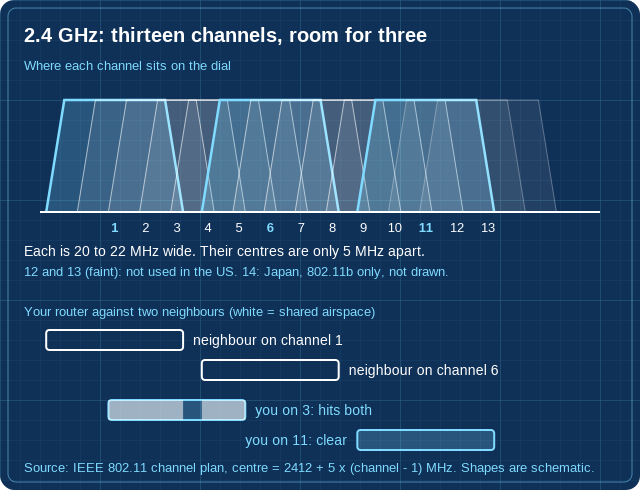
The 2.4 GHz band numbers its channels 1 to 13 in most of the world (1 to 11 in the US). Channel 1 is centred on 2412 MHz, and each next channel is 5 MHz higher. But a channel is wider than that: 22 MHz for the older 802.11b, and 20 MHz nominal for the newer g, n and ax. Only every fifth channel is far enough away to leave the others alone, so 1, 6 and 11 are the three that do not overlap.
This matters because there are two kinds of sharing:
- Same channel. Two routers on channel 6 hear each other and take turns. Nobody’s data is damaged. Each just waits for the other to finish. Extreme Networks describes this as contention overhead.
- Partly overlapping channels. A router on channel 3 sits on top of neighbours on both 1 and 6. They do not hear each other as “taking turns”. They talk over each other, and the same source says that corrupts data and hurts throughput and latency.
So if your router is on channel 3 or 8 and your neighbours are on 1, 6 and 11,
you are on top of two of them at once. Moving to the nearest of 1, 6 or 11
turns that into the polite kind of sharing. Check what your router picked. A
Wi-Fi scanner app lists nearby networks with their channel and dBm. On Linux,
sudo iw dev <interface> scan does too (it usually needs root, and the channel
shows under “DS Parameter set”).
5 GHz and 6 GHz have many more channels, so this is mostly a 2.4 GHz problem. That is one more reason a device in the far room may still prefer 2.4 GHz: it reaches, but it fights for space.
What fixes it
Start with what costs nothing and work down.
1. Move the router. Microsoft’s advice is to put it toward the middle of the home and as high as you can, and not in a corner or under a desk. Every wall you remove from the path is dB back. Moving the router two metres can change which walls the signal crosses, which often matters more than the distance itself. Keep it away from metal.
2. Pick the channel. On 2.4 GHz use 1, 6 or 11. If your router uses one name for both bands, the far room’s device may have picked 5 GHz because it looked stronger at some moment. Splitting the names for a test shows you which band works better there.
3. Add a second box. This is where people spend money, and where the choice matters. A few words first:
- A backhaul is the link that connects the extra box to the router.
- An extender receives the Wi-Fi signal and repeats it, often under a second name.
- A mesh system is several boxes that act as one network under one name.
- An access point is a box that only does the radio part. It needs a cable.
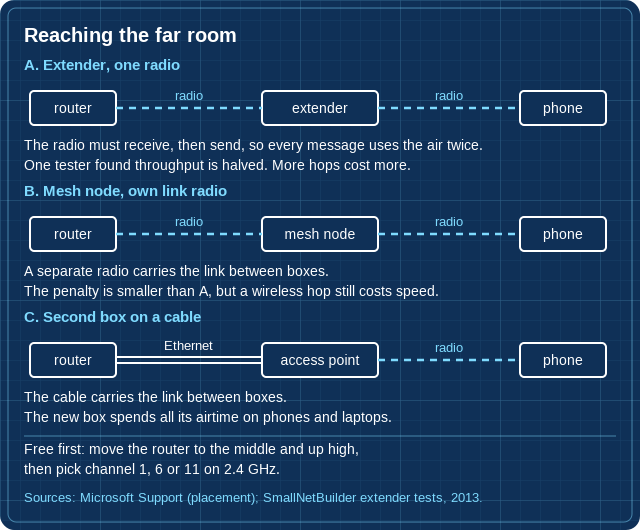
The difference is what carries the backhaul. An extender with one radio has to receive from the router and send to your phone on the same channel. Each message uses the air twice. SmallNetBuilder’s extender tests (2013) put it this way: twice the airtime means half the bandwidth. It is a rule of thumb, and it gets worse with each extra hop. A mesh node with a dedicated link radio does not share airtime with your devices, so the penalty is smaller, but a wireless hop still costs speed and still crosses your walls. A cable takes the backhaul out of the air entirely. Then the box’s radios spend all their time on your devices.
Where you put the second box matters as much as which kind you buy. If it sits in the dead room, it is hearing the router at -80 dBm and repeating that. My rule of thumb is to place it where it still hears the router at about -67 dBm: far enough to help, near enough to have something to repeat. With a cable you do not have this limit, so you can put the box in the weak room.
If you cannot run Ethernet, adapters that send data over the mains wiring or the coax cable exist. How well they work depends on the wiring in your home.
| Fix | What it costs | Works when | Watch out for |
|---|---|---|---|
| Move the router | Nothing | One wall is the problem | The router must stay near the incoming line |
| Change the channel | Nothing | You share 2.4 GHz with neighbours | Dead room stays dead if the issue is walls |
| Extender | Low | One room, with a strong signal where it sits | Half the speed on one radio |
| Mesh, wireless link | Medium | Several weak rooms, no cable possible | Link crosses the same walls |
| Access point or mesh on Ethernet | Medium, plus the cable | A cable can reach the far room | Cable run |
My order is the one in the table: move, channel, cable, mesh, and extender last. That is an opinion, not a measurement.
When the signal is fine and it is still slow
Not every slow room is a weak room. Read the dBm first.
| Reading in the room | Likely cause | First thing to try |
|---|---|---|
| -75 dBm or weaker, fine near the router | Walls and distance | Move the router, or add a wired access point |
| -55 dBm and still slow | A crowded or overlapping channel, or non-Wi-Fi noise | Check the channels, switch 2.4 GHz to 1, 6 or 11 |
| Fine everywhere, slow everywhere | Not Wi-Fi: the internet line or the router’s own connection | Plug a laptop into the router with a cable and test |
Questions people ask
Why is my Wi-Fi weak in only one room? Usually that room is behind a wall that costs a lot, most often concrete, thick brick or multi-layer energy-saving glass, or it is at the far end of the path. The signal loses a fixed amount at each wall and then fades with distance. Read the dBm value in that room. At -75 or weaker, the path is the problem.
Does 2.4 GHz or 5 GHz go through walls better? 2.4 GHz. In my calculation 100 mm of concrete takes 8 dB at 2.4 GHz and 14 dB at 5.5 GHz, and in open air 5.5 GHz starts about 7 dB behind. 5 GHz is still faster when the signal is strong, so it is the better choice in the same room as the router.
What is a good Wi-Fi signal in dBm? -67 dBm or stronger is a common target for video calls and streaming. -70 dBm is fine for web and email. At -80 dBm you are barely connected, and at -90 dBm you lose the network. These are rules of thumb from vendor training pages, not part of the standard.
Why do only channels 1, 6 and 11 matter on 2.4 GHz? Channels are 20 to 22 MHz wide but only 5 MHz apart, so most of them overlap their neighbours. Channels 1, 6 and 11 are 25 MHz apart, so they do not overlap each other. Two routers on the same channel take turns, which is mild. Two on overlapping channels interfere with each other, which is worse.
Should I buy a mesh system or an extender? For one weak room with a strong signal at the spot where the extender will sit, an extender can work. If you have several weak rooms, or you can run a cable, use a second access point or mesh with Ethernet backhaul. A wireless link between boxes costs speed, and a cable does not.
Cheat sheet
Further reading
- ITU-R P.2040-4: effects of building materials and structures on radiowave propagation (Table 3 holds the material values I used)
- ITU-R P.525-5: calculation of free-space attenuation
- NIST, NISTIR 6055: electromagnetic signal attenuation in construction materials
- Rodriguez et al., radio propagation into modern buildings, 800 MHz to 18 GHz (IEEE VTC Fall 2014)
- FCC, April 2020: new rules for the 6 GHz band
- Microsoft Support: Wi-Fi and your home layout
- List of WLAN channels, which cites the IEEE 802.11 channel plan
- MathWorks: 802.11ac receiver minimum input sensitivity, citing IEEE Std 802.11-2020 Table 21-25
- Oscium: understanding RSSI
- Extreme Networks: 2.4 GHz channel planning
- SmallNetBuilder: single band wireless extender roundup (2013)

Backend engineer who builds high-volume systems that move money. More about Rafi